Install & manage TV apps
Connect, then open Tools → App manager. Only third-party apps are managed.
Find and open apps
Browse app names and icons, search by name and select an app to launch it. Refresh the list after installing or removing apps.
Install an APK
Open Tools → Install APK, choose a trusted single APK, then connect and confirm the target TV. Android version and CPU architecture are checked before installation. Wait for the installation result after upload. Signature conflicts never automatically uninstall the existing app, and downgrades are not forced. XAPK, APKM and APKS split packages are not supported.
Check before uninstalling
Confirm the device and app name first. Uninstalling may remove that app's local data, which NATNT Assistant cannot restore. System apps are outside the manager's scope.
Interrupted transfers
Keep both devices online and avoid locking the phone or changing networks during transfer. Automatic resume is not supported. Reconnect, check the result and retry if needed. Long, gigabyte-scale transfers need further testing.
If installation fails
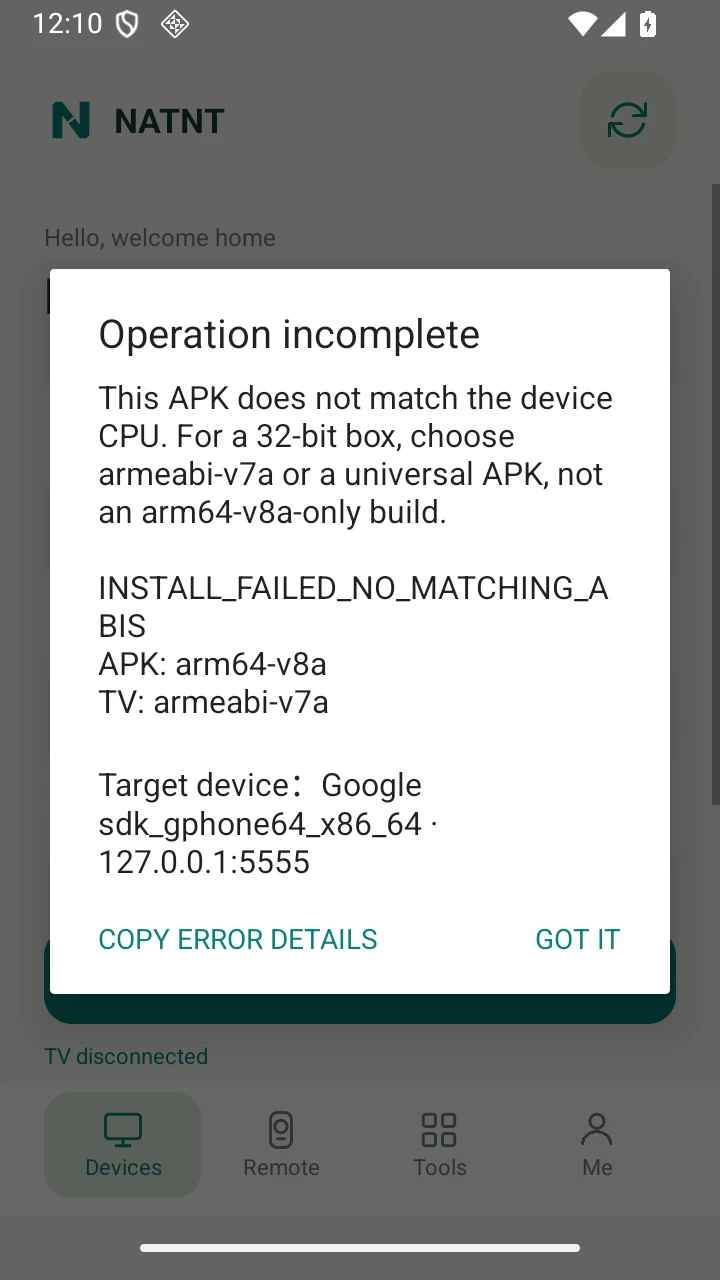
Read and copy the full error from the dialog. Check the APK’s architecture, Android requirement, signature and version, plus available TV storage. Do not uninstall an app with important data simply to force an update.
Keep the specific error when something fails
Copy the error details and check the TV OS, CPU architecture, storage and app signature. This screenshot shows one architecture mismatch; your error may have a different cause.
Actual installation error dialog in English on an emulator: incompatible architecture. The target address is emulator loopback.